

Last updated October 20, 2026 · R36 Ultra Editorial Team
R36S and R36 Ultra hotkeys depend on the firmware, not the console. On ArkOS-style firmware and ROCKNIX, Select is the usual hotkey: Select + Start exits a game and Select + R1 saves a state. dArkOSRE-R36 moves save and load to Select + B and Select + A, and ArkOS4Clone uses FN (or Select) + R2 and L2. Check which firmware your card runs first, then use the matching table below.
Every combo here comes from the firmware’s own documentation or a named guide; “not listed” means the source doesn’t document it. New to the console? Start with the R36 Ultra setup guide.
As an Amazon Associate we earn from qualifying purchases.
Quick answer
- Exit a game: Select + Start on ArkOS, dArkOSRE-R36 and ROCKNIX. ROCKNIX’s R35S/R36S page says to press it twice, and TechTactician says legacy ArkOS-R3XS builds also need two presses.
- Save and load state: Select + R1 / Select + L1 on ArkOS and ROCKNIX, Select + B / Select + A on dArkOSRE-R36, and Hotkey + R2 / Hotkey + L2 on ArkOS4Clone, according to each project’s docs.
- Fast forward: Select + R2 on ROCKNIX, Select + D-Pad Right on dArkOSRE-R36 and Hotkey + R1 on ArkOS4Clone. The original ArkOS FAQ lists Select + R2 only for its Mednafen emulators.
- Brightness: R3 + D-Pad Up/Down on ArkOS and dArkOSRE-R36, Select + Volume on ROCKNIX, and Hotkey + D-Pad Up/Down on ArkOS4Clone.
- Stock R36 Ultra firmware: Retro Handhelds says it runs the EmuELEC frontend, but we found no published hotkey list for that stock build. Treat any stock combo as not confirmed until you see it on your own unit.
- Save states are not in-game saves. The libretro docs keep battery saves as
.srmfiles and states as.statefiles, and a state can stop loading after a core update.
-
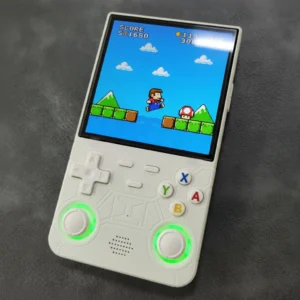
4-inch Handhelds, Handheld Game Console
Amazon price: $69.99 as of Oct 27 · updated daily
Check Price → -

Compact Handhelds, Handheld Game Console
Amazon price: $32.89 as of Oct 27 · updated daily
Check Price →
Why do R36S hotkeys differ by firmware?
The buttons on an R36S or R36 Ultra do nothing special by themselves. The firmware on the microSD card (or, on the R36 Ultra, the stock system on internal memory) decides which button is the “hotkey” and what each combo does.
Most games run inside RetroArch, and the libretro docs describe its “Enable Hotkeys” setting as a modifier: once a button is mapped to it, you have to hold that button for any hotkey to work. Every firmware picks its own modifier. ArkOS and ROCKNIX use Select, ArkOS4Clone uses FN on devices that have one, and dArkOSRE-R36 uses R3 (pressing the right stick) for its system-wide volume and brightness controls.
How do I check which firmware my R36S or R36 Ultra runs?
Three quick checks cover most cases.
- Watch the boot screen. TechTactician lists a missing “ArkOS 2.0” boot message as a sign of a clone running other firmware.
- Look at the card’s partition names on a computer. TechTactician says ArkOS-family cards usually have a partition labeled
EASYROMS, while some clones showEMUELECorEEROMSinstead. - Remember what you flashed. If you installed custom firmware yourself, the image file name tells you the project, for example dArkOSRE-R36, ArkOS4Clone or ROCKNIX.
If you aren’t sure whether your R36S is genuine or a clone, our R36S clone types list and the which panel do I have guide explain the board and DTB checks. R36 Ultra owners can start with the R36 Ultra firmware guide.
R36S hotkeys in games: save state, load state, exit and fast forward
This table covers RetroArch, which runs most systems on these consoles. “Hotkey” means FN on ArkOS4Clone devices with an FN key and Select on those without one, as the ArkOS4Clone wiki defines it.
| Action | ArkOS (original) | dArkOSRE-R36 | ArkOS4Clone | ROCKNIX (R35S/R36S) |
|---|---|---|---|---|
| Exit game | Select + Start (ArkOS RG351MP FAQ) | Start + Select (dArkOSRE RetroArch wiki); TechTactician says one press | Not listed for RetroArch in the ArkOS4Clone wiki | Select + Start, pressed twice (ROCKNIX docs) |
| Save state | Select + R1 (ArkOS FAQ) | Select + B (dArkOSRE wiki) | Hotkey + R2 (ArkOS4Clone wiki) | Select + R1 (ROCKNIX docs) |
| Load state | Select + L1 (ArkOS FAQ) | Select + A (dArkOSRE wiki) | Hotkey + L2 (ArkOS4Clone wiki) | Select + L1 (ROCKNIX docs) |
| Change save slot | Not listed for RetroArch; Select + D-Pad Left/Right in Mednafen (ArkOS FAQ) | Select + Y / Select + X for previous/next state (dArkOSRE wiki, FN-button layout) | Not listed | Not listed |
| Fast forward | Not listed for RetroArch; Select + R2 in Mednafen (ArkOS FAQ) | Select + D-Pad Right (dArkOSRE wiki) | Hotkey + R1 (ArkOS4Clone wiki) | Select + R2 (ROCKNIX docs) |
| Open RetroArch menu | Select + X, or L1 + R1 + Start + Select (ArkOS FAQ) | FN alone, or Select + X on devices without FN (dArkOSRE wiki) | Hotkey + X (ArkOS4Clone wiki) | Select + Y (ROCKNIX docs) |
| Screenshot | Not listed | Select + L3 (dArkOSRE wiki) | Not listed | Select + B (ROCKNIX docs) |
The original ArkOS wiki has no R36S page. Its download list points R35S owners to the RG351MP FAQ, which is why that FAQ is the reference here. If you run the archived ArkOS-R3XS community build, TechTactician lists Select + R1 to save, Select + L1 to load and Select + FN (hold) for fast forward.
R36S brightness, volume and shutdown shortcuts
| Action | ArkOS (original) | dArkOSRE-R36 | ArkOS4Clone | ROCKNIX (R35S/R36S) |
|---|---|---|---|---|
| Brightness up/down | R3 + D-Pad Up/Down or R3 + Volume Up/Down (ArkOS FAQ) | R3 + D-Pad Up/Down, or R3 + R2/L2 (dArkOSRE Audio and Screen Control wiki) | Hotkey + D-Pad Up/Down (ArkOS4Clone wiki) | Select + Vol + / Select + Vol − (ROCKNIX docs) |
| Volume up/down | Volume buttons; no combo listed (ArkOS FAQ) | R3 + R1 / R3 + L1; R3 + L3 mutes (dArkOSRE wiki) | Hotkey + D-Pad Left/Right (ArkOS4Clone wiki) | Volume buttons; no combo listed (ROCKNIX docs) |
| Safe shutdown | R3 + Power (ArkOS FAQ) | R3 + Power (dArkOSRE wiki) | Not listed | Not listed |
| Exit any emulator or app | Not listed | Not listed | Not listed | L1 + Start + Select (ROCKNIX docs) |
Sources disagree on legacy ArkOS brightness. The original ArkOS FAQ uses R3, while TechTactician lists FN + Volume Up/Down for ArkOS-R3XS builds. Try R3 first, then FN.
dArkOSRE-R36 adds gamma control on R3 + D-Pad Right/Left. Its wiki says the range is 0.4 to 1.8 and the setting resets to 1.0 on reboot. Lower brightness also helps runtime, which our R36 Ultra battery guide covers.
How do I exit a game on the R36S?
Press Select and Start together. On ROCKNIX, press the pair twice, which is the “SELECT+START (x2)” entry on its R35S/R36S page. TechTactician reports the same two-press rule on legacy ArkOS-R3XS, while saying dArkOSRE-R36 quits on one press.
If you’d rather quit on one press, TechTactician suggests opening the RetroArch menu and turning off Settings → Input → Confirm Quit. Standalone emulators are different. The ArkOS FAQ says to exit Drastic (Nintendo DS) through its own menu, which opens with L3.
If Select + Start does nothing, you may be in a non-RetroArch emulator or on firmware with other mappings. The R36 Ultra troubleshooting guide covers frozen games and black screens.
What are the R36 Ultra shortcuts on the stock firmware?
Retro Handhelds’ R36 Ultra review says the console “runs a custom Linux stock OS with the EmuELEC frontend”. It doesn’t list hotkeys, and we found no seller manual or wiki page that does. So stock R36 Ultra combos are not confirmed here.
Two clues point the same way, but neither is proof for your unit. sim1222’s Linux write-up on the R36 Ultra uses Select + X to open the menu. ROCKNIX’s page for EmuELEC-based clones such as the K36 and R36 Max lists Select + Start (twice) to quit, Select + R1 to save and Select + L1 to load under ROCKNIX. That is a different firmware from the stock system.
The reliable way to find out is to open the RetroArch menu during a game and go to Settings → Input → Hotkeys. The libretro docs name that menu as the place where every hotkey is bound. Whatever it shows on your console is the real answer.
Want ArkOS-style controls on an R36 Ultra? See our ArkOS4Clone and dArkOS install guide for the R36 Ultra. Flash a second microSD card and keep a full image of the stock card first.
Save states vs in-game saves: what’s the difference?
An in-game save is the save the game itself makes, like a save point in an RPG. The Snes9x core’s libretro page stores it as a cartridge battery save with the .srm extension.
A save state is a snapshot of the whole emulated console at one moment, made by the emulator. The same libretro page stores states as .state files.
States are more fragile. The libretro melonDS DS docs say states from the legacy core “cannot be migrated” because the state format changed, and they advise saving in-game normally before switching. Before a firmware update, make a real in-game save too. Our dArkOS guide and R36S custom firmware guide cover updates.
Where are save files stored on the R36S?
On ArkOS, saves sit next to the games. The ArkOS FAQ (#27) says saves and save states live in each system’s folder, giving GBA’s .srm and .state files in /roms/gba as its example. The dArkOS wiki says the same: in-game saves and save states are in the respective ROM folders.
That makes backups simple. Copy the system folders from the EASYROMS partition and the saves come with them. The SD card guide explains how to back up and move a card.
For the stock R36 Ultra system, ROCKNIX and ArkOS4Clone, we found no documented save path, so it’s not confirmed here. Look inside your ROM folders for .srm and .state files before you wipe or reflash a card. And only load games you legally own; our how to add games guide shows where they go.
How do I change or reset R36S hotkeys?
RetroArch hotkeys are set in Settings → Input → Hotkeys, according to the libretro docs. Change a binding there, then save the configuration so it stays.
ROCKNIX adds a catch. Its R35S/R36S page says that while “AUTOCONFIGURE RETROARCH HOTKEYS” is on (Settings → Controller & Bluetooth), your own hotkeys are overwritten by the defaults each time RetroArch launches. Turn it off if you want custom combos to stick.
dArkOSRE-R36’s volume and brightness combos can’t be changed. Its wiki says they are hard-coded in the ogage program.
Sources
- ArkOS wiki: Frequently Asked Questions, RG351MP (FAQ #7 hotkeys, #27 saves)
- ArkOS wiki: Home (device FAQ links)
- dArkOS wiki: Home (save locations)
- dArkOSRE-R36 wiki: RetroArch hotkeys
- dArkOSRE-R36 wiki: Audio and Screen Control
- ArkOS4Clone wiki (section 6, hotkeys)
- ROCKNIX: Game Console R35S/R36S
- ROCKNIX: K36, R36Max/Pro and other EE clones
- TechTactician: R36S/R35S hotkeys, shortcuts and tricks
- TechTactician: R36S setup guide (clone and firmware checks)
- Retro Handhelds: R36 Ultra review
- sim1222: Linux on the R36 Ultra (Japanese)
- Libretro Docs: Input and Controls
- Libretro Docs: Snes9x core (save and state files)
- Libretro Docs: melonDS DS (savestate migration)
Frequently asked questions
How do I save a game on the R36S?
Use the game’s own save menu for a permanent save, or press the save-state combo: Select + R1 on ArkOS and ROCKNIX, Select + B on dArkOSRE-R36, or Hotkey + R2 on ArkOS4Clone, according to each project’s documentation. Make a normal in-game save before firmware updates, because save states can stop loading after a core change.
How do I exit a game on the R36S?
Press Select + Start together. ROCKNIX’s R35S/R36S page says to press it twice, and TechTactician says dArkOSRE-R36 quits on one press. In Drastic (Nintendo DS), the ArkOS FAQ says to exit through the emulator’s own menu.
How do I fast forward on the R36S?
It depends on the firmware: Select + R2 on ROCKNIX, Select + D-Pad Right on dArkOSRE-R36 and Hotkey + R1 on ArkOS4Clone. The original ArkOS FAQ lists Select + R2 only for its Mednafen emulators, so check RetroArch’s Settings → Input → Hotkeys if it doesn’t work.
How do I change brightness on the R36S?
On ArkOS and dArkOSRE-R36, hold R3 (press the right stick) and press D-Pad Up or Down. ROCKNIX uses Select + Volume Up/Down and ArkOS4Clone uses Hotkey + D-Pad Up/Down. See our battery guide for why lower brightness helps runtime.
What are the R36 Ultra hotkeys on the stock firmware?
They are not confirmed. Retro Handhelds says the stock R36 Ultra runs an EmuELEC frontend, but we found no published hotkey list for it. Open the RetroArch menu in a game and check Settings → Input → Hotkeys, or read our R36 Ultra firmware guide.
Where are R36S save files stored?
On ArkOS, the FAQ says saves and save states sit in each system’s ROM folder, for example .srm and .state files in /roms/gba. The dArkOS wiki says the same. Paths for the stock R36 Ultra system and ROCKNIX are not confirmed here.
Our pick: the R36 Ultra
Check Price on Amazon →Opens in a new tab · As an Amazon Associate we earn from qualifying purchasesNew R36 guides and releases
Occasional emails when a model is worth your money. No spam.